What is PKScreener

A Python-based stock screener for NSE, India.
pkscreener is an advanced stock screener to find potential breakout stocks from NSE and tell it’s possible breakout values. It also helps to find the stocks which are consolidating and may breakout, or the particular chart patterns that you’re looking specifically to make your decisions. pkscreener is totally customizable and it can screen stocks with the settings that you have provided.
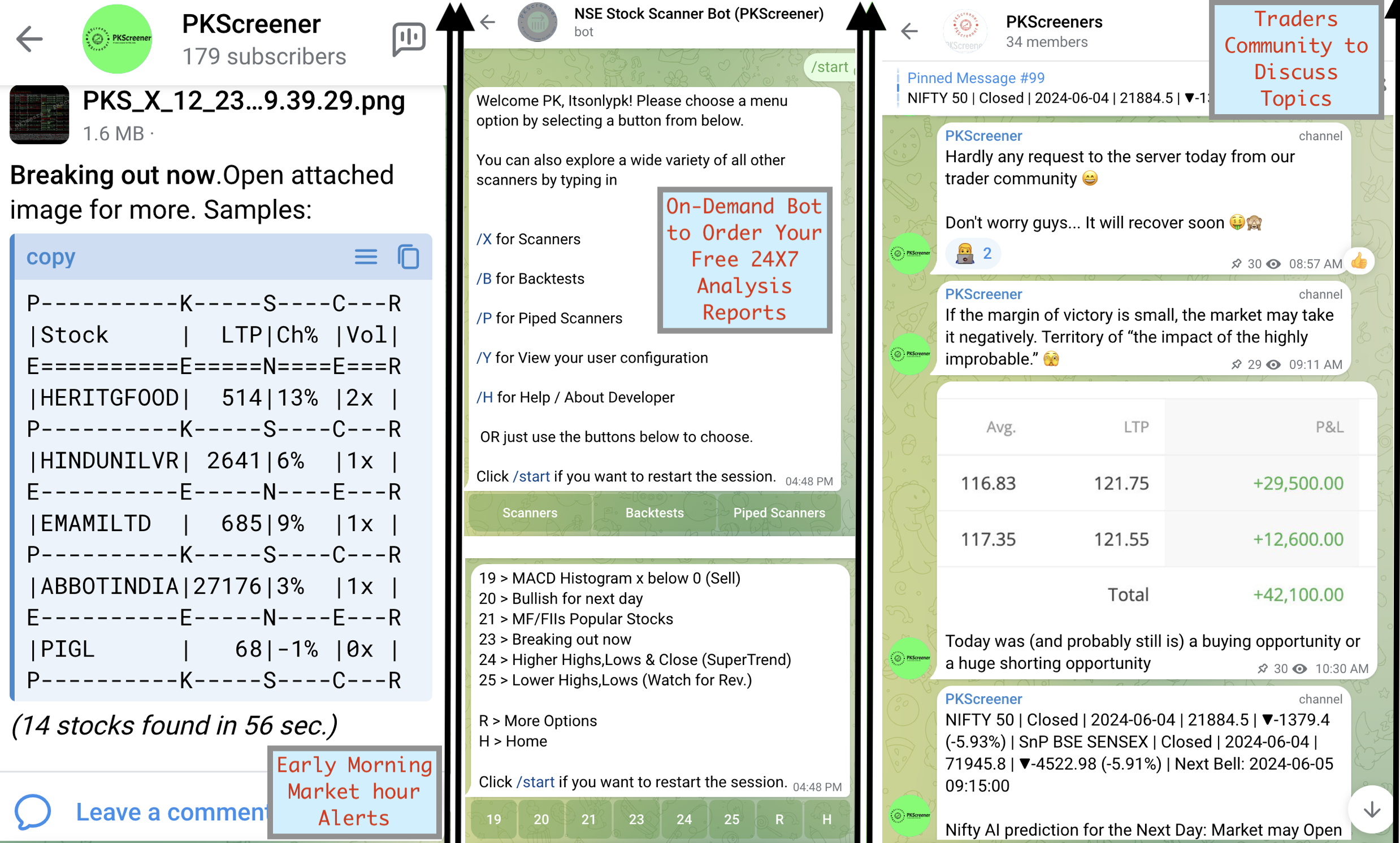
Alerts on Telegram Channel
You can get daily scan results/alerts at scheduled times by subscribing to the following Telegram channel:
QR Code |
Purpose |
Description/link |
|---|---|---|

|
Alerts Channel |
https://t.me/PKScreener > You wil receive all the major alerts on this telegram channel. These alerts are sent for all major strategy scans daily around 9:30am-10:15am and then around 4pm. You will also receive the next day’s market predictions. |

|
Discussions |
https://t.me/PKScreeners > For any discussion related to PKScreener, you may like to join this related Telegram group |
Receiving On-Demand Scan results
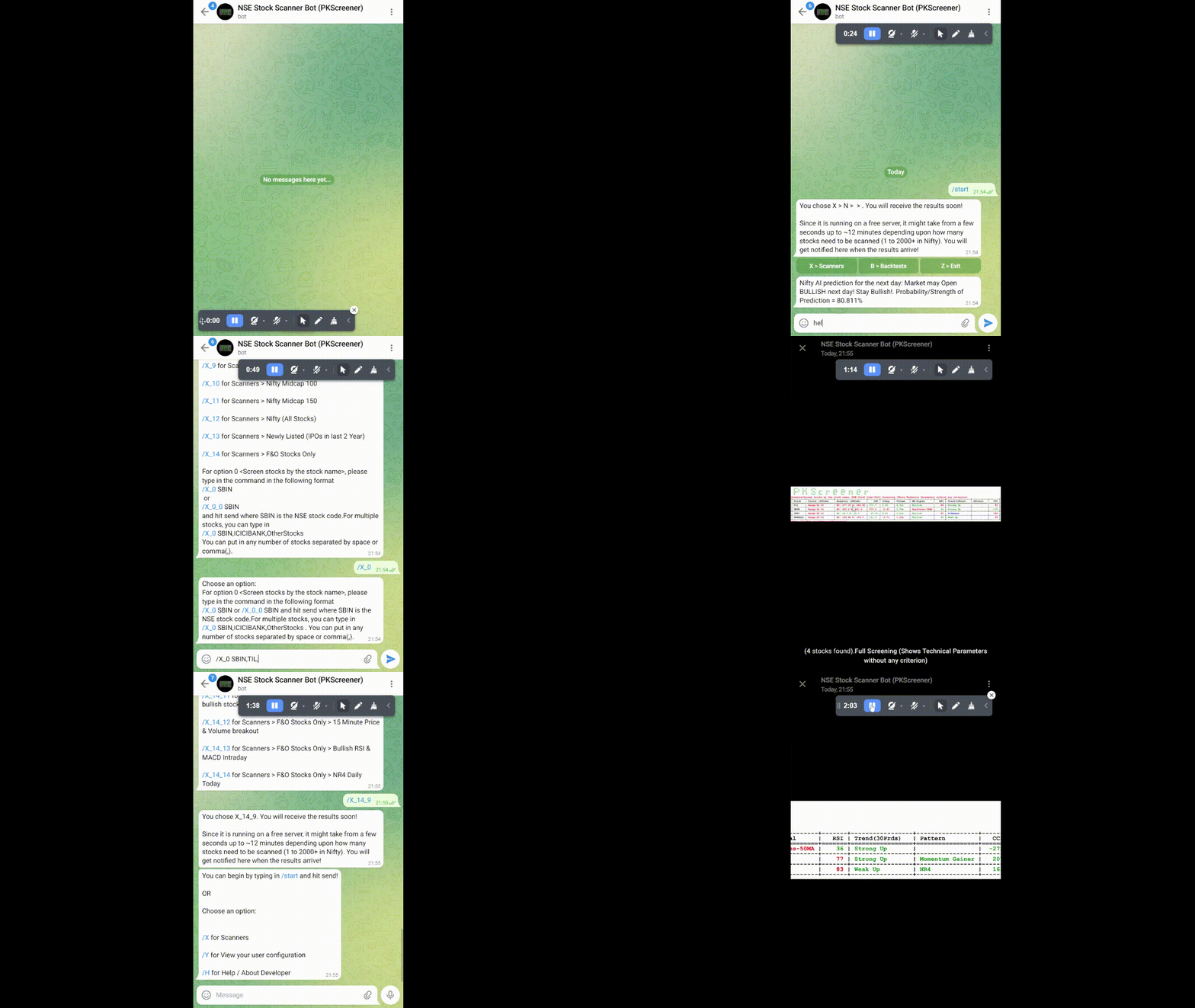
You can now run the pkscreenerbot on your local machine or if it’s running on the GitHub server under a GitHub Actions workflow, you can use the pkscreener Bot (@nse_pkscreener_bot on Telegram) to get on-demand scan results.
Installation
Requirements: Python 3.12+.
How to use on your own local Windows/Linux/Macbook laptop?
Using docker, running within docker container
Download and install docker desktop: https://docs.docker.com/get-docker/
After installation, launch/run docker desktop and if it asks, login using your docker credentials.
Launch any command line and type
docker pull pkjmesra/pkscreener:latest. Then typedocker run -it pkjmesra/pkscreener:latest.
Installing the latest version from PyPi.
Go ahead and install using
pip install pkscreenerThis should install all of the major dependencies, except maybe, TA-Lib.
This app can still run without TA-Lib, but if you need to install TA-Lib for technical indicators (which otherwise is used from
pandas_ta_classicin the absence of TA-Lib), you can do this: Head to.github/dependencies/under this repo. Download the respective TA-Lib file/whl file and install either from the .whl file or from source. Check out any of the workflow files for steps to install TA-Lib.Now launch your favorite command line CLI and issue
pkscreener. This will launch the pkscreener executable.
Building from source repo
Install python 3.12 for your OS/CPU. Download the installer from https://www.python.org/downloads/release/python-3913/#Files
Just clone the repo with
git clone https://github.com/pkjmesra/PKScreener.gitcd PKScreenerpip install -r requirements.txt.(Optional) If you would like to have technical indicators evaluated using TA-Lib, go ahead and install TA-Lib as well.
pip3 install ta-libHead to .github/dependencies/ under this repo. Download the respective TA-Lib file/whl file and install either from the .whl file or from source. Check out any of the workflow files for steps to install TA-Lib.
If you want to exactly follow the steps as we follow during the build process, please refer to this: For Windows: See https://github.com/pkjmesra/PKScreener/blob/main/.github/workflows/w1-workflow-build-matrix.yml#L117-L136 For Mac`: https://github.com/pkjmesra/PKScreener/blob/main/.github/workflows/w1-workflow-build-matrix.yml#L177-L184 For Ubuntu/Linux: https://github.com/pkjmesra/PKScreener/blob/main/.github/workflows/w1-workflow-build-matrix.yml#L150-L164
cd pkscreenerFinally, from within the
pkscreenerdirectory, runpython pkscreenercli.pyor justpkscreener. You are all set.If you are running from the project root directory (where the
pkscreenerdirectory is), please runpython pkscreener/pkscreenercli.py
Usage
Running the executables
Download the suitable file according to your OS from the release page: https://github.com/pkjmesra/PKScreener/releases
Linux & Mac users should make sure that the
pkscreenercli_x64.bin or pkscreenercli_x64.runis havingexecutepermission (chmod +x pkscreenercli_x64.bin) or for Mac : (chmod +x pkscreenercli_x64.run).Run the file.
Configuration
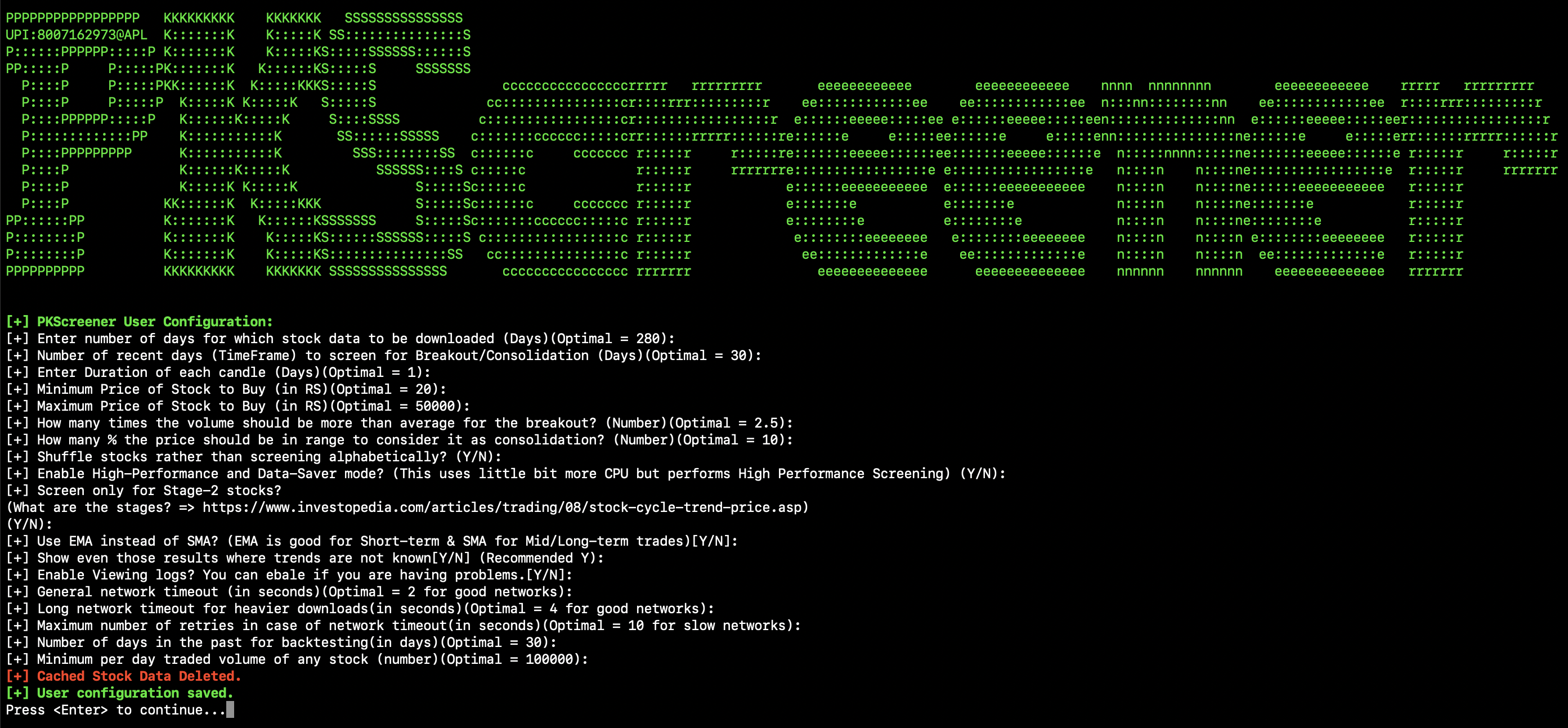
Configure the parameters as per your requirement using
Option > E.
Scanners
Scanner Menus the scanner menus for each level/sub-level
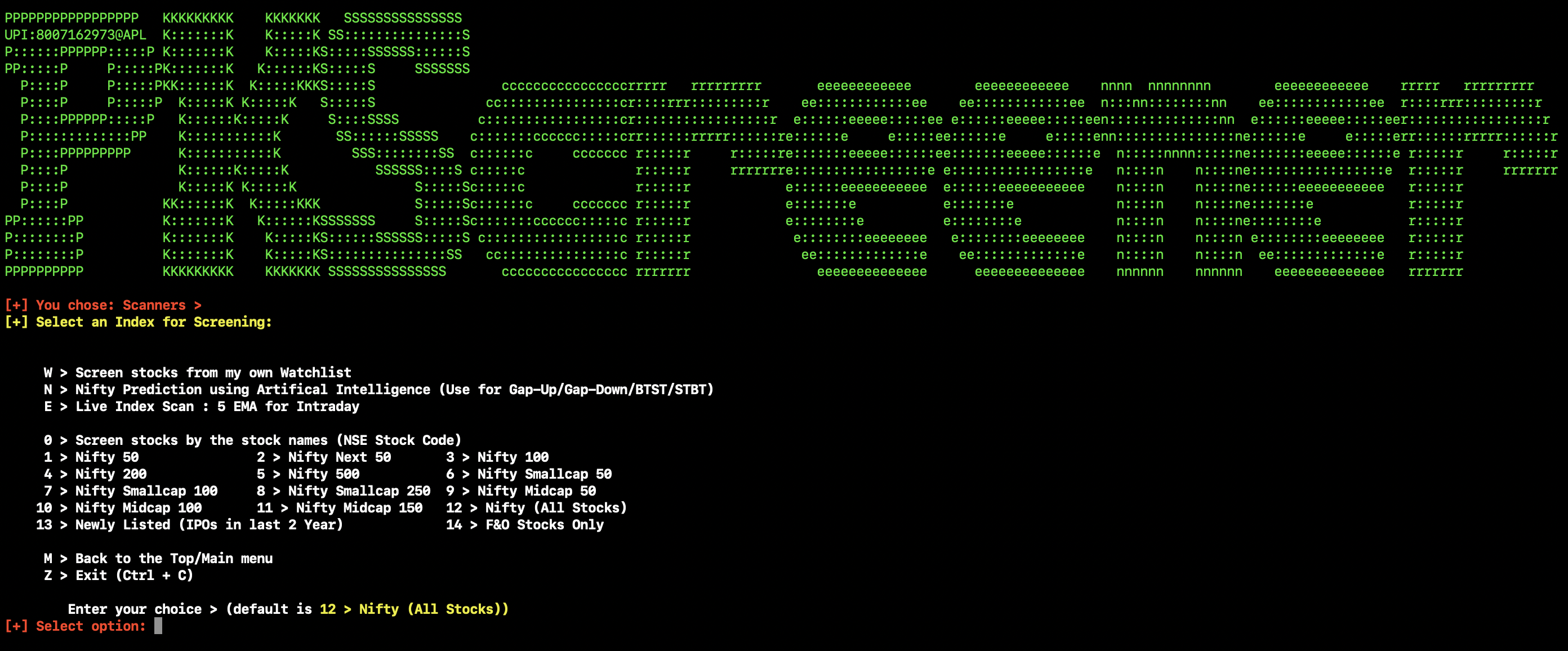
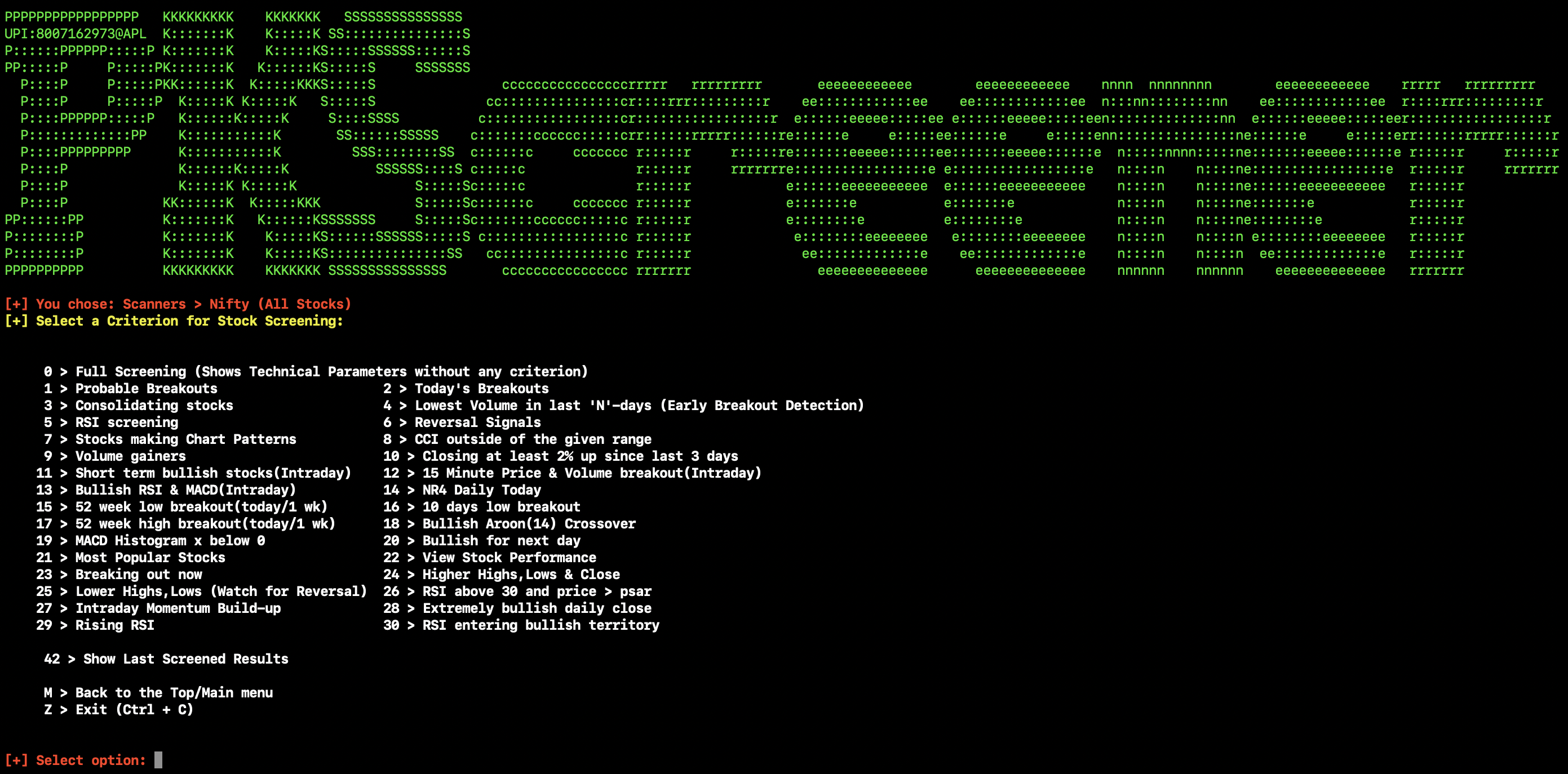
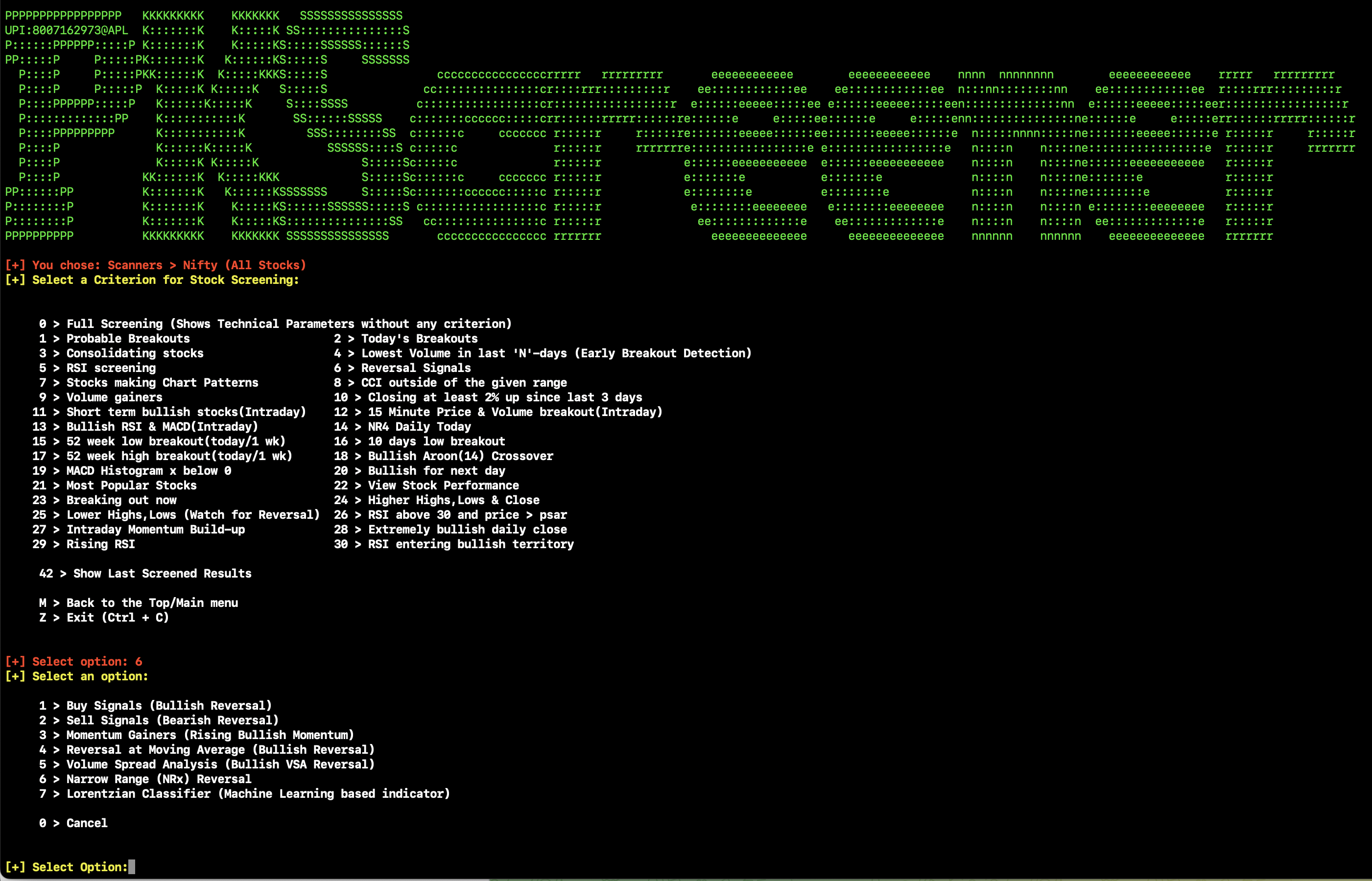
Following are the screenshots of screening and output results.
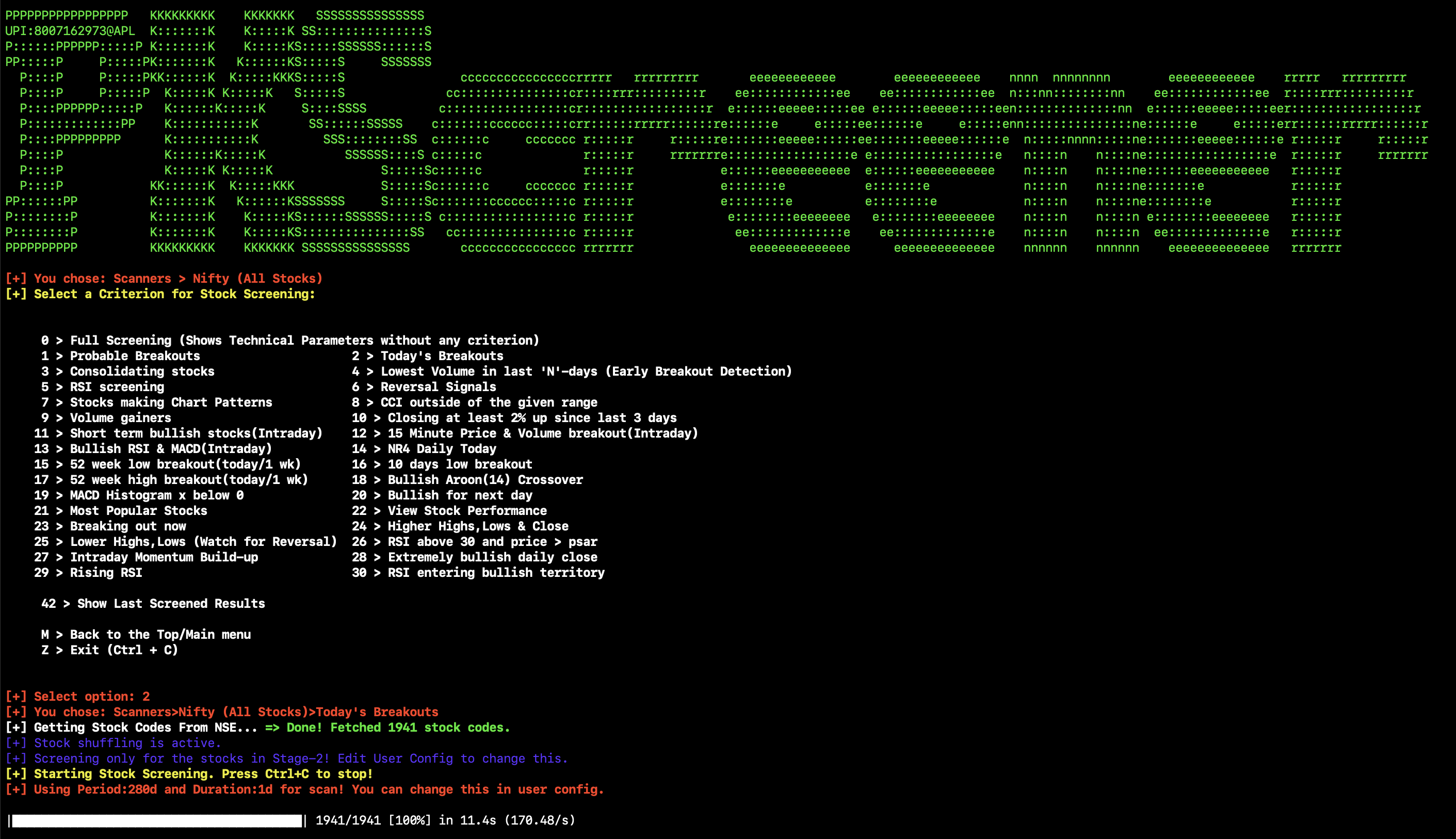
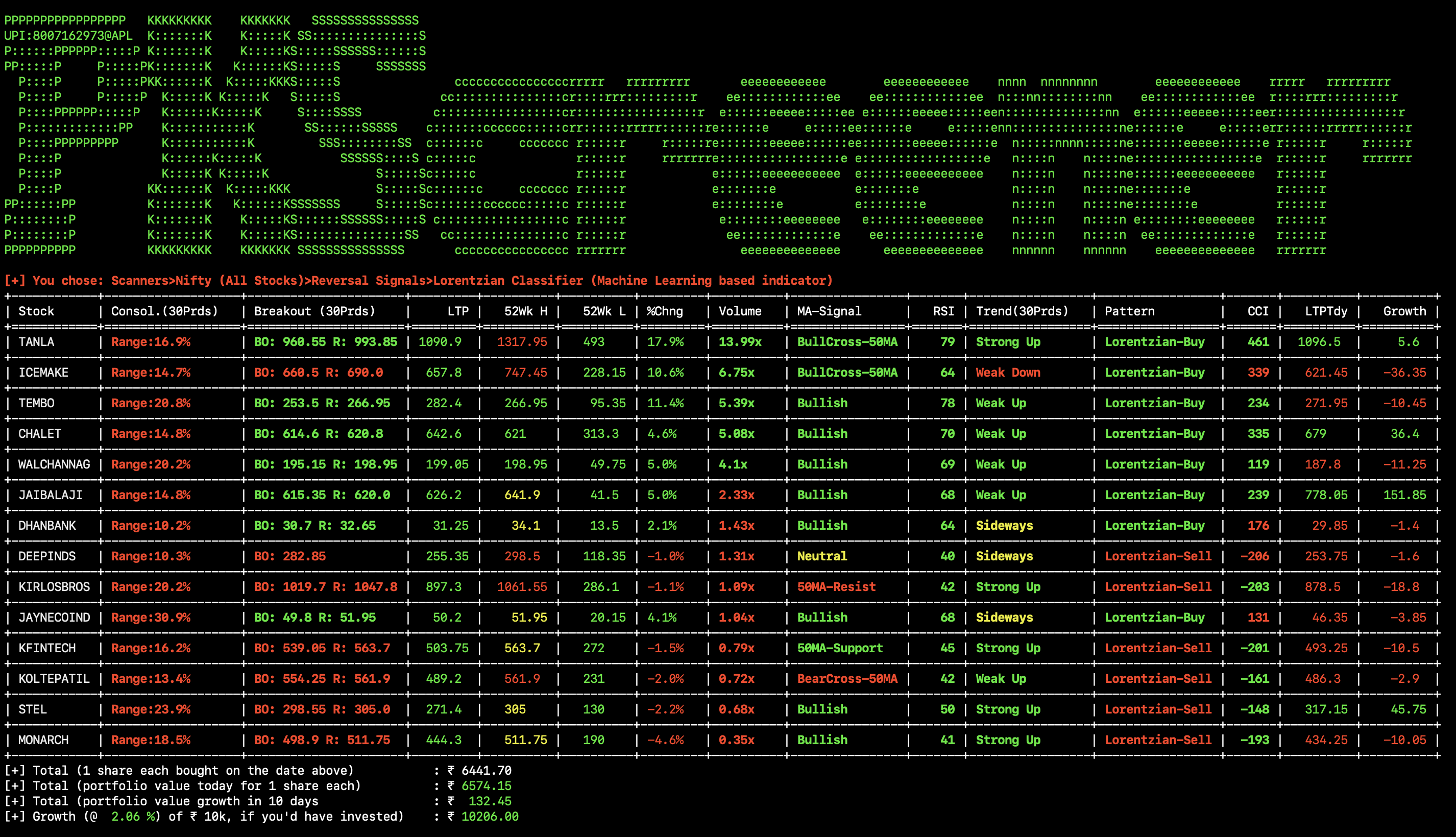
Once done, you can also save the results in an excel file.
Backtests
You can now use the Backtests menu to backtest any of the selected strategies.
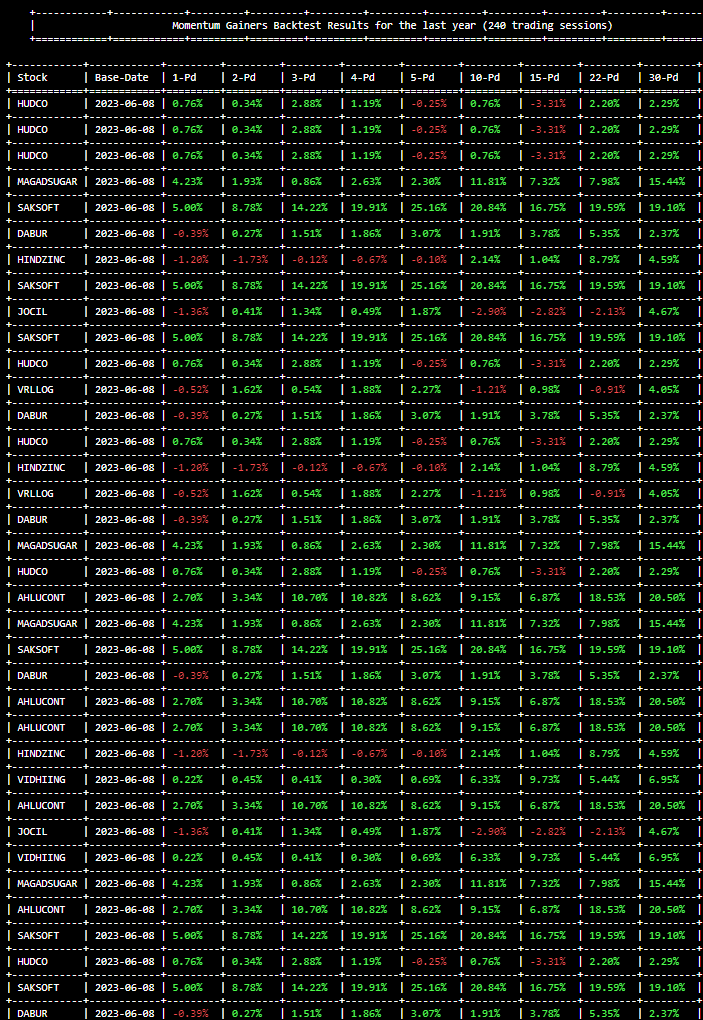
Once done, you can also view the output html file saved at the same location from where you launched the app.
Scanning as a scheduled job once or at regular intervals
Running it once with pre-defined inputs
You can also run it as a one time job in any scheduler with pre-defined options. For example ./pkscreenercli.py -a Y -o X:12:10 -e (or pkscreenercli.exe -a Y -o X:12:10 -e if you’re executing with the exe) will run the scanner for all Nifty stocks and find all stocks matching CCI filter, save the results in xlsx file and exit. ./pkscreenercli.py -a Y -o X:12:9:2.5 -e will run the scanner (menu option X) for all Nifty stocks (menu option 12) to find volume gainers (menu option 9) with at least the volume multiplier of 2.5 (input variable 2.5), save the results in xlsx file and exit (menu option -e). Passing in the -p option for example pkscreenercli.py -a Y -p -o X:12:6:1 -e will also silence all command line prints/outputs and just run silently for the given options, save results and exit. Try and see all options with ./pkscreenercli.py -h.
Running it at regular intervals
If you want to runn it at regular intervals, you can just pass the interval in -c command line option. For example, ./pkscreenercli.py -a Y -o X:12:6:1 -c 180 will run it every 180 seconds with console outputs also being printed. If you’d just like it to run as a cron job without console outputs, you may also pass the -p parameter. For example, ./pkscreenercli.py -a Y -p -o X:12:6:1 -c 180
Understanding the Result Table
The Result table contains a lot of different parameters which can be pretty overwhelming to the new users, so here’s the description and significance of each parameter.
Sr |
Parameter |
Description |
Example |
|---|---|---|---|
1 |
Stock |
This is a NSE scrip symbol. If your OS/Terminal supports unicode,
You can directly open [TradingView](https://in.tradingview.com/)
charts by pressing |
[TATAMOTORS](https://in.tradingview.com/chart?symbol=NSE%3ATATAMOTORS) |
2 |
Consolidating |
It gives the price range in which stock is trading since last |
If stock is trading between price 100-120 in last 30 days, Output will be |
3 |
Breakout (N Days) |
This is pure magic! The |
|
4 |
LTP |
LTP is the Last Traded Price of an asset traded on NSE. |
|
5 |
Volume |
Volume shows the relative volume of the recent candle with respect to 20 period
MA of Volume. It could be |
if 20MA(Volume) is 1M and todays Volume is 2.8M, then |
6 |
MA-Signal |
It describes the price trend of an asset by analysing various 50-200 MA/EMA crossover strategies. |
|
7 |
RSI |
For the momentum traders, it describes 14-period RSI for quick decision making about their trading plans |
|
8 |
Trend |
By using advance algorithms, the average trendlines are computed for |
|
9 |
Pattern |
If the chart or the candle itself forming any important pattern in the recent timeframe or as per the selected screening option, various important patterns will be indicated here. |
|
Hack it your way
Feel free to Edit the parameters in the pkscreener.ini file which will be generated by the application.
 [config]
 period = 1y
 daystolookback = 22
 duration = 1d
 minprice = 30
 maxprice = 10000
 volumeratio = 2
 consolidationpercentage = 10
 shuffle = y
 cachestockdata = y
 onlystagetwostocks = y
 useema = n
 logsEnabled = n
Try to tweak this parameters as per your trading styles. For example, If you’re comfortable with weekly charts, make duration=5d and so on. For intraday, you can set period=1d and duration=5m if you would like to calculate with 5minute candles. Set the duration to 15m or whatever value you desire, but keep the period to 1d. This tool, however, works best for short/mid term instead of intraday, but some scans like momentum/volume/NR4 etc can be used for screening stocks for intraday as well. You can use the toggle menu option T to toggle between long term and intraday config before you begin the scanners.
Creating your own Telegram channel to receive your own alerts
You can create your own telegram channel to receive alerts wherenevr you run it locally on your laptop either from a command line interface console or run it as a scheduler. Simply, go ahead and
Create a bot for yourself, then a channel and get their IDs. Follow the steps in https://medium.com/codex/using-python-to-send-telegram-messages-in-3-simple-steps-419a8b5e5e2 and https://www.siteguarding.com/en/how-to-get-telegram-bot-api-token
After you have created the bot using
botFatherand have received/verified your bot id/token and channel ID usingget id bot, simply go topkscreenerfolder in the source code directory and create a.env.devfile with the following (If you are instead using the .exe or .bin or .run file from release, just create this file in the same folder where the executable (.exe or .bin or .run) is placed.)
 CHAT_ID=Your_Channel_Id_Here_Without_A_Hyphen_or_Minus_Sign
 TOKEN=Your_Bot_Token_Here
 chat_idADMIN=Your_Own_ID_Here
From now on, you will begin to receive your own alerts on your telegram channel.
Troubleshooting and Logs
If you are having issues running the program, you can just launch a command line interface (On windows> Start > Run > cmd) and then launch PKScreener with a command line option of -l. For example, python pkscreenercli.py -l. This will show you the path where the program will save all the log outputs from this run. Copy that path and go ahead and run the application. Altenatively, you can just go ahead and modify the logsEnabled value to y, save & close it and then run python pkscreenercli.py.
After you have finished the run, go to that copied path, zip the contents of the file pkscreener-logs.txt and create an issue at https://github.com/pkjmesra/PKScreener/issues. Please do not forget to attach the log files in the issue.
Developer Documentation
For developers looking to contribute to PKScreener, comprehensive documentation is available:
Document |
Description |
|---|---|
Getting started, project structure, development workflow |
|
System architecture, component details, data flow diagrams |
|
Detailed documentation for all 47+ scan categories and options |
|
Key classes, methods, and function signatures |
|
Writing and running tests, mocking guidelines, coverage targets |
Contributing
We welcome contributions! Please see our Contributing Guide for:
Code style guidelines
Pull request process
Testing requirements
Issue reporting
Quick links for developers:
GitHub Issues: https://github.com/pkjmesra/PKScreener/issues
GitHub Discussions: https://github.com/pkjmesra/PKScreener/discussions
Source Code: https://github.com/pkjmesra/PKScreener